
If you send an ABA/Direct Debit file to your bank for processing regular payments, you will need to tell Profiler that the payments are successful (or declined) to roll the payments over to the next due date (if successful)
From Regular Payments > Direct Debits choose On Screen Processing
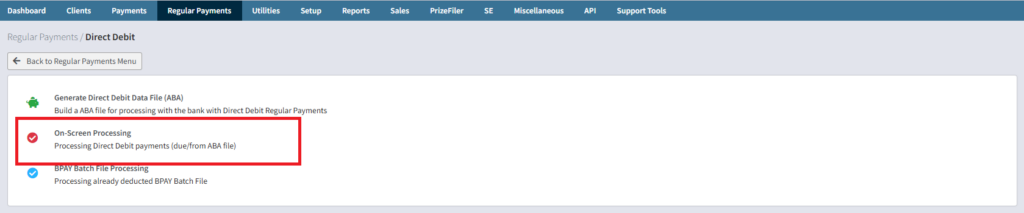
From the ABA File dropdown select the ABA/Direct Debit file you have previously generated and click Next Screen

This will show you all the contents of the file that was previously uploaded to the bank.
In the file the clients with the tick boxes checked means a Successful Payment was made. Should you wish to not record a successful payment UNTICK the box for that client.
Scroll to the base of the page.

You can now set the details for the record payments. This means a payment will be recorded against each client.
- Payment Tag (optional) if you want to tag the payments
- Payment Method – select the payment method that these payments will be recorded as
- Payment Date – select the date you wish the payments to be recorded against the clients (often the date the bank has processed the file)
If you wish to delete this entire batch, click Clear Pending
When you are ready to continue click Create Payments at this point
- All ticked regular payments will have a payment record on the Payment Date
- They will be rolled over to the next due date (ie. month, year etc)
This then has rolled the dates over for the regular payments, and those that were not successful will remain lapsed on the due date they currently were at.